
Installing Java Agent in Tomcat Server 8.x and above
Note
Refer to this help page for the previous steps.
- Extract the zip file to a new directory to find agent jar and its configuration files.
- Open the apminsight.conf file in any text editor, enter your license.key (which can be obtained from the Site24x7 APM Insight page), configure the application.name and agent.server.port values as required, and save the file. Refer here to fine-tune the agent settings.
NoteIf multiple Java applications or instances are running on the same host, configure application-specific properties, such as application.name and agent.server.port, as JVM system properties instead of configuring them in the apminsight.conf file. For more information, refer to this KB article.
- Choose the appropriate method based on your OS:
- For Windows, you can follow any of the methods:
- For Tomcat as non-service installation:
Edit <TOMCAT_HOME>\bin\catalina.bat and add the following entry to the top and save the file.
set JAVA_OPTS=%JAVA_OPTS% -javaagent:<agent_directory_full_path>/apminsight-javaagent.jar
- For Tomcat as service installation, navigate to Configure Tomcat > JAVA tab and add the entry in Java Options textbox.
-javaagent:<agent_directory_full_path>/apminsight-javaagent.jar
NoteIf you are unable to find the Configure Tomcat app (for the desired Tomcat server) in Windows search, navigate to the Tomcat bin directory and then double-click on the Tomcat<version>w.exefile. 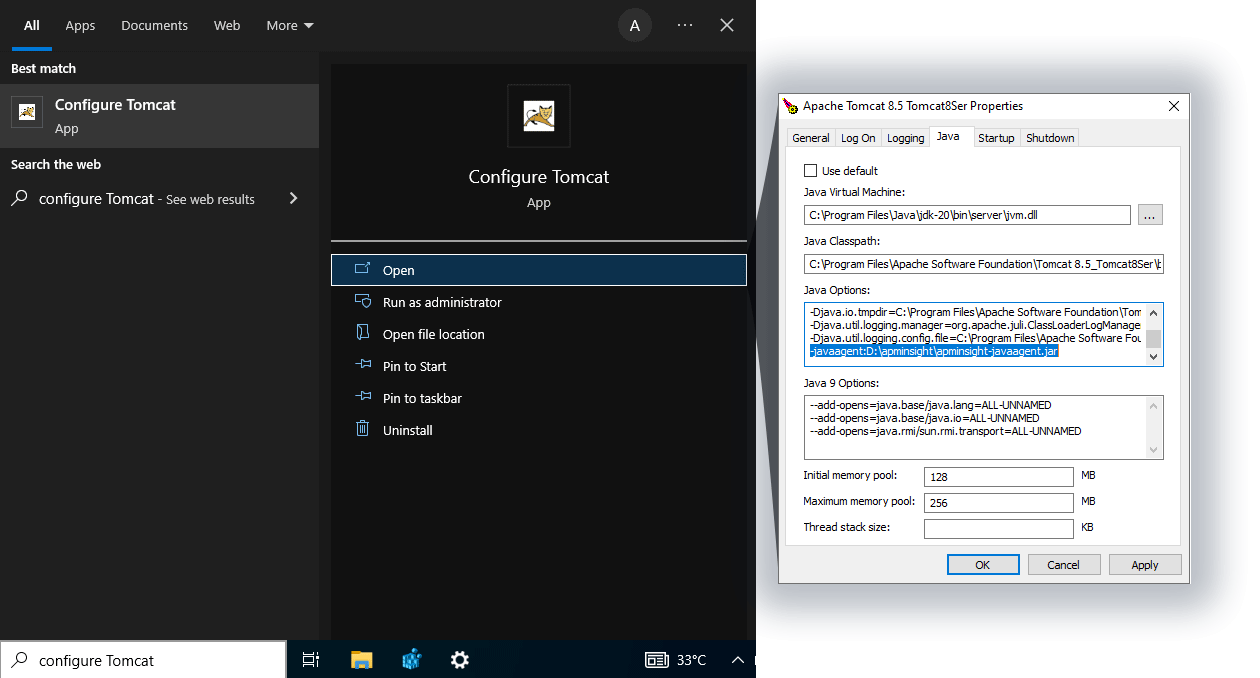
- For Tomcat as non-service installation:
- For Linux, edit <TOMCAT_HOME>/bin/catalina.sh and add the following entry to the top and save the file.
export JAVA_OPTS="$JAVA_OPTS -javaagent:<agent_directory_full_path>/apminsight-javaagent.jar"
- For Windows, you can follow any of the methods:
- After adding the entry, click Apply.
- Start the Tomcat server.
Video
Here's a quick video on how to install a Site24x7 APM Insight Java agent in Tomcat Server (8.x and above) on Linux.
-
On this page
- Video