Zia Recommendations
Zia Recommendations uses the knowledge provided in Zia Solutions to generate relevant recommendations for operational tasks and incident resolution. By analyzing documented instructions, playbooks, runbooks, and troubleshooting procedures, Zia identifies actions that can help teams investigate issues, address incidents, and improve operational efficiency.
Recommendations can include suggested corrective actions, remediation procedures, and automation opportunities. For example, when a Solution contains instructions suitable for automation, Zia generates IT automation scripts or commands for review and approval.
This helps teams apply their organization's operational knowledge while retaining control over the recommended actions.
How Zia Recommendations works
Zia Recommendations analyzes the information available in Zia Solutions to identify relevant actions based on documented procedures.
- Analyze Solutions: Zia examines the knowledge, instructions, playbooks, and runbooks provided in Zia Solutions.
- Identify recommendations: Zia identifies suitable actions or remediation opportunities based on the available knowledge.
- Generate recommendations: Where applicable, Zia generates actionable recommendations, such as IT automation scripts or commands.
- Review recommendations: Users can examine the generated recommendations and the source information used to generate them.
- Accept or reject recommendations: Users decide whether to proceed with the suggested actions.
Benefits
- Use organization-specific knowledge: Generate recommendations based on your documented operational procedures and best practices.
- Generate context-aware recommendations: Use recommendations derived from established instructions and remediation procedures.
- Reduce manual effort: Identify opportunities to automate repetitive tasks and generate scripts or commands where applicable.
- Maintain human-in-the-loop control: Review and approve recommendations before implementing the suggested actions.
Use cases
- Disk space management: Generate recommendations to remove unnecessary temporary files and restore available disk space.
- Application service recovery: Recommend scripts or commands to restart unresponsive services and verify recovery.
- Log management: Suggest automations to archive or remove application logs based on defined retention policies.
- Process recovery: Generate scripts or commands to restart failed background processes based on documented recovery procedures.
How to view and manage Zia Recommendations
To review and manage generated recommendations, follow these steps:
- Log in to your account.
- Navigate to Admin > Zia Settings > Zia Recommendations.
- Select a recommendation to view its details.
- Review the Generated based on section to see which instructions from the corresponding Solution were used.
- Review the recommendation and choose one of the following actions:
- Accept: Approve the recommendation and proceed with the relevant configuration or implementation steps.
- Reject: Reject the recommendation if it does not meet your requirements.
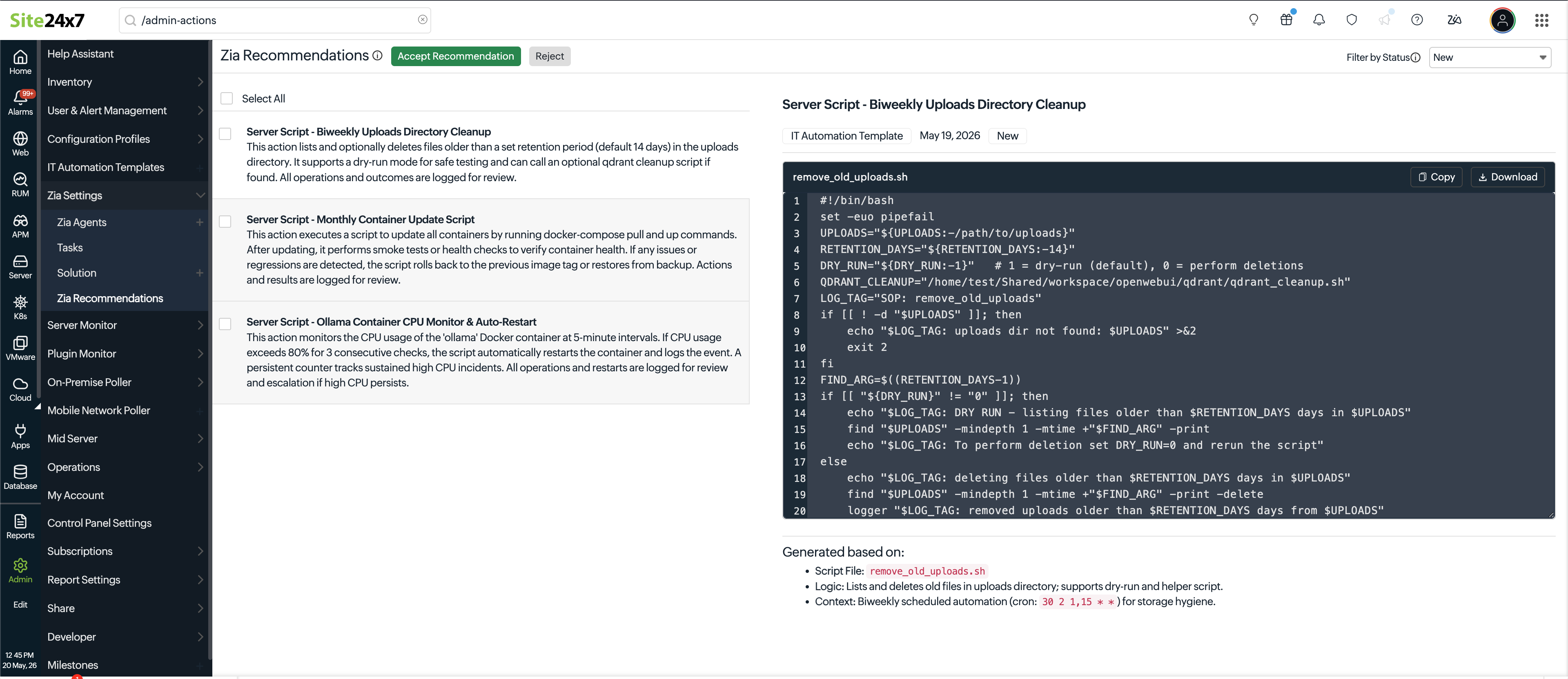
For the currently supported IT automation recommendations, accepting a recommendation opens the Add IT Automation Template form.
How to convert a recommendation into an IT automation
When a recommendation contains an IT automation script or command, you can convert it into a reusable IT automation template.
- Accept the recommendation.
- The Add IT Automation Template form opens with the generated details prefilled.
- Review the script or command and make any necessary modifications.
- Select the monitors or monitor groups where you want to apply the automation.
- Click Save to create the IT automation template.
Accepting a recommendation does not automatically execute the generated script or command.
How to modify a generated recommendation
Generated recommendations cannot be edited directly.
To modify a recommendation, update the relevant instructions in the corresponding Zia Solution, and then regenerate the recommendation.
For IT automation recommendations, you can also modify the generated script or command in the Add IT Automation Template form after accepting it.
How to revisit previous recommendations
Use the Filter by Status drop-down menu to view recommendations based on their review status, including newly generated, accepted, and rejected recommendations.
Rejected recommendations are retained for one month, after which they are automatically cleared.
Best practices
- Provide relevant knowledge: Include clear instructions, playbooks, and runbooks in Zia Solutions to help generate meaningful recommendations.
- Define expected outcomes: Describe the conditions, actions, and outcomes associated with operational procedures.
- Review recommendations: Verify that suggested actions align with your organization's operational requirements.
- Validate automation scripts: Test generated scripts or commands before applying them to production resources.
- Maintain appropriate permissions: Ensure that recommended actions are implemented with the required access controls.
- Keep Solutions updated: Maintain current operational knowledge so recommendations reflect your latest procedures.
Frequently asked questions
1. How does Zia generate recommendations?
Zia analyzes the knowledge and instructions provided in Zia Solutions to identify relevant actions. When the documented procedures are suitable for automation, Zia can generate IT automation scripts or commands.
2. Why are no recommendations generated for my Solution?
Recommendations depend on the information available in the Solution and the recommendation types currently supported. For example, a Solution containing only general reference information may not provide sufficient instructions to generate an IT automation recommendation.
3. Can I edit a generated recommendation?
No. To change a recommendation, update the corresponding Zia Solution and regenerate it. For IT automation recommendations, you can modify the script or command when creating the template.
4. Does accepting a recommendation automatically execute an action?
No. For IT automation recommendations, accepting a recommendation opens the Add IT Automation Template form for review and configuration.
5. Can I accept multiple recommendations at once?
No. Recommendations must be accepted individually.
6. Can I view previously rejected recommendations?
Yes. Use the Filter by Status drop-down menu and select Rejected to revisit previously rejected recommendations within the retention period.