Enable access to your accounts using the Delegated Admin method
For comprehensive AWS infrastructure monitoring, Site24x7 needs to automatically discover all instances of various supported services currently running in your accounts. To enable this, you need to authenticate and authorize Site24x7 to access your resources. You can achieve this by manually creating IAM user roles or cross-account IAM roles. You can also use the AWS CloudFormation template, AWS Control Tower, and AWS IAM Identity Center methods to integrate your AWS accounts with Site24x7.
The Delegated Admin method enables seamless integration of your AWS accounts with Site24x7 by designating a member account as a delegated administrator within your AWS organization. This approach allows the delegated admin account to manage the integration and monitoring of AWS resources across all member accounts, streamlining operations and enhancing security.
While integrating your AWS accounts with Site24x7 using the Delegated Admin method, ensure that you are logged in to the member account designated as the administrator account in AWS during this workflow. The StackSet must be run from the delegated admin account for seamless account integration.
Use cases
- Consider that you have multiple AWS accounts and want to monitor their resources centrally. By designating a member account as a delegated admin, you can integrate all AWS accounts with Site24x7, allowing for unified monitoring and management.
- Imagine that you are a growing organization that frequently adds new AWS accounts and needs a streamlined process for integration and monitoring. Using the Register with Delegated Admin method, you can quickly integrate new AWS accounts that you wish to monitor with Site24x7, ensuring consistent monitoring.
Prerequisites
Make sure you have the following before you begin:
- A delegated admin account
- The following permissions for the CloudFormation stack to create the resources that are required for discovery:
- "iam:AttachRolePolicy"
- "iam:CreatePolicy"
- "iam:CreateRole"
- "iam:PassRole"
- "iam:GetRole"
- "lambda:AddPermission"
- "lambda:CreateFunction"
- "lambda:GetFunction"
- "lambda:InvokeFunction"
- "logs:CreateLogGroup"
- "logs:DescribeLogGroups"
- "cloudformation:CreateStackSet"
- "cloudformation:DescribeStackSet*"
- "cloudformation:ListStackSet*"
- "cloudformation:CreateStackInstances"
- "cloudformation:ListStackInstances"
- "cloudformation:DeleteStackInstances"
- "cloudformation:DeleteStackSet"
- "organizations:ListAccounts"
- "organizations:ListAccountsForParent"
- "organizations:ListChildren"
- "sts:GetCallerIdentity"
Benefits of using the Delegated Admin method for integration
You gain the following benefits by integrating your AWS accounts with Site24x7 using the Delegated Admin method:
- Centralized management: Assigning a delegated admin account facilitates centralized oversight of AWS resources across multiple accounts, simplifying monitoring and management tasks.
- Enhanced security: By minimizing the need for direct access to the AWS management account, the Delegated Admin method reduces potential security risks associated with broad access privileges.
- Scalability: This method allows for efficient scaling by enabling the delegated admin account to integrate and monitor new AWS accounts as they are added to the organization.
- Improved governance and compliance: The Delegated Admin method helps organizations enforce governance and compliance standards across all AWS accounts under the delegated admin account. This approach simplifies compliance reporting and audit-readiness while reducing manual oversight efforts.
How to set up a delegated admin account
When you assign a member account as a delegated administrator, users and roles from that account can manage AWS CloudFormation StackSets without needing access to the organization's management account. This allows you to keep organizational management separate from StackSets administration, improving security and control.
If you do not have a delegated admin account already set up, follow the steps below to register one:
- Sign in to AWS as an administrator of the management account and open the AWS CloudFormation console.
- From the navigation pane, select StackSets.
- Under Delegated administrators, select Register delegated administrator.
- In the Register delegated administrator dialog box, select Register delegated administrator.
A success message will indicate that the member account has been registered successfully as a delegated administrator.
Integrate your AWS accounts with Site24x7 using the Delegated Admin method
To integrate all your AWS accounts with Site24x7 using the Delegated Admin method, follow the steps below:
- Log in to the Site24x7 web console.
- Go to Cloud > AWS > Integrate AWS Account.
- Select the AWS Account Type. The available options are Global, Gov Cloud (US), and China.
- Select Multiple Accounts as the integration method.
- Select Register with Delegated Admin.
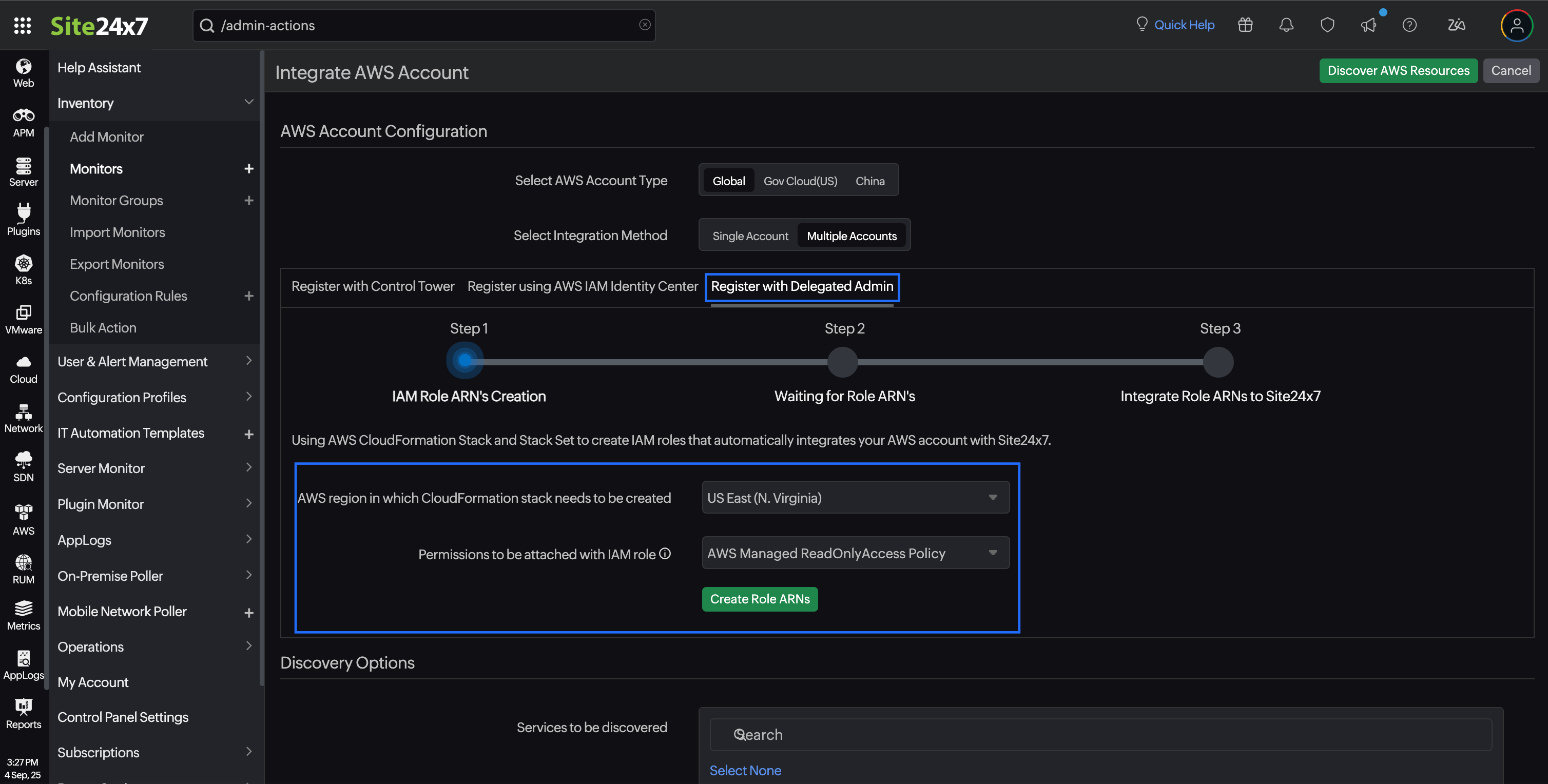
- Select the AWS region in which CloudFormation stack needs to be created.
- Select the preferred Permissions to be attached with IAM role. Site24x7 provides two options for IAM role permissions:
- AWS Managed ReadOnlyAccess Policy: The IAM role will be created with the ReadOnlyAccess policy, which is managed by AWS for all services.
- Site24x7 Custom Policy: The IAM role will be created with the in-line policy formulated with the read-only permissions required for Site24x7-supported services. Learn more.
- Click Create Role ARNs. The CloudFormation stack in your account will automatically create all the necessary components in your account. Learn more.
After creating the IAM role, the CloudFormation stack and stack sets will send the role ARNs to Site24x7 via the Lambda function.
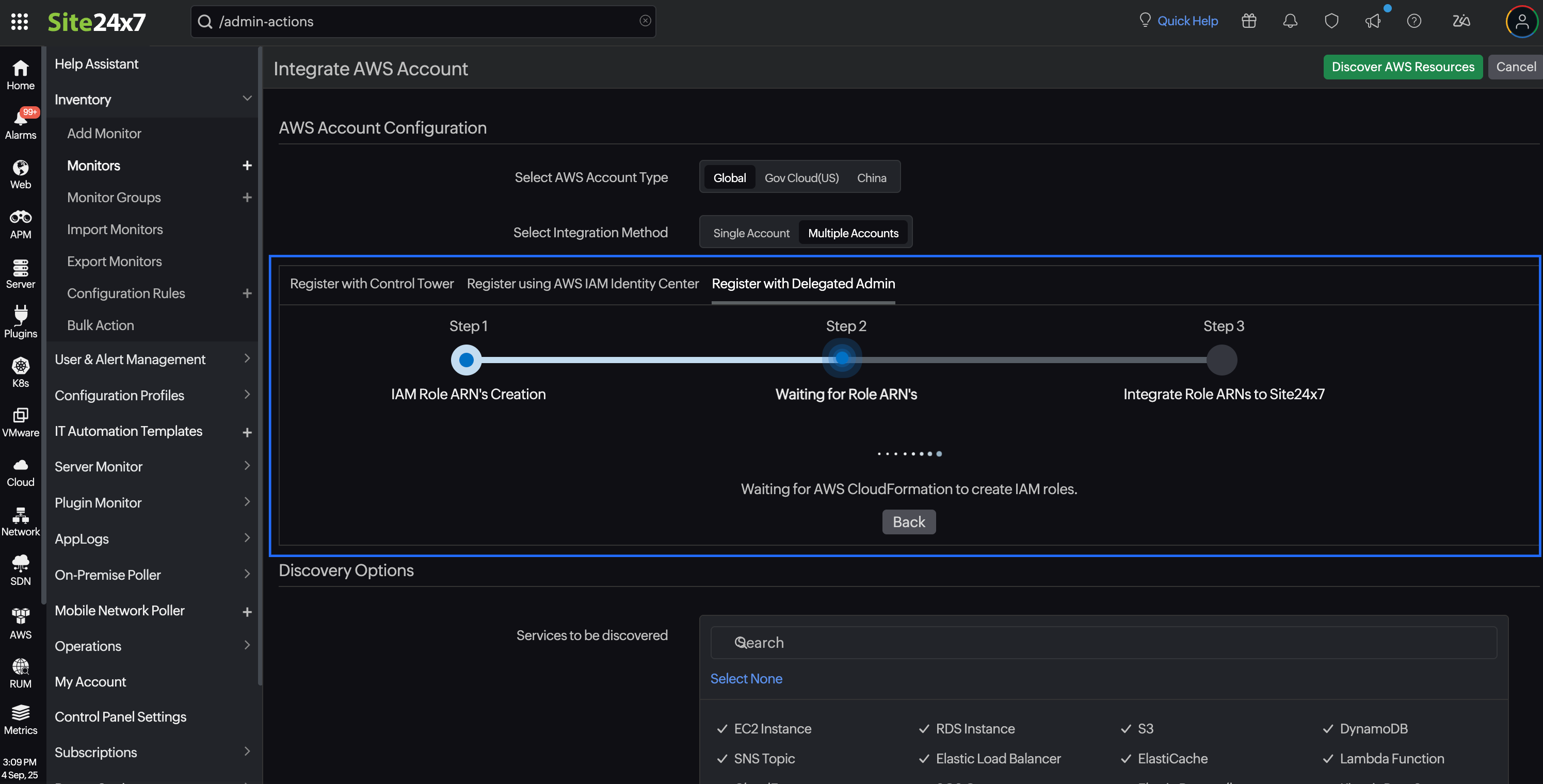
- Enter the Display Name.
- Enter the regular expression to be filtered in the Accounts Filter field or select the accounts to be integrated from the Select Accounts list.
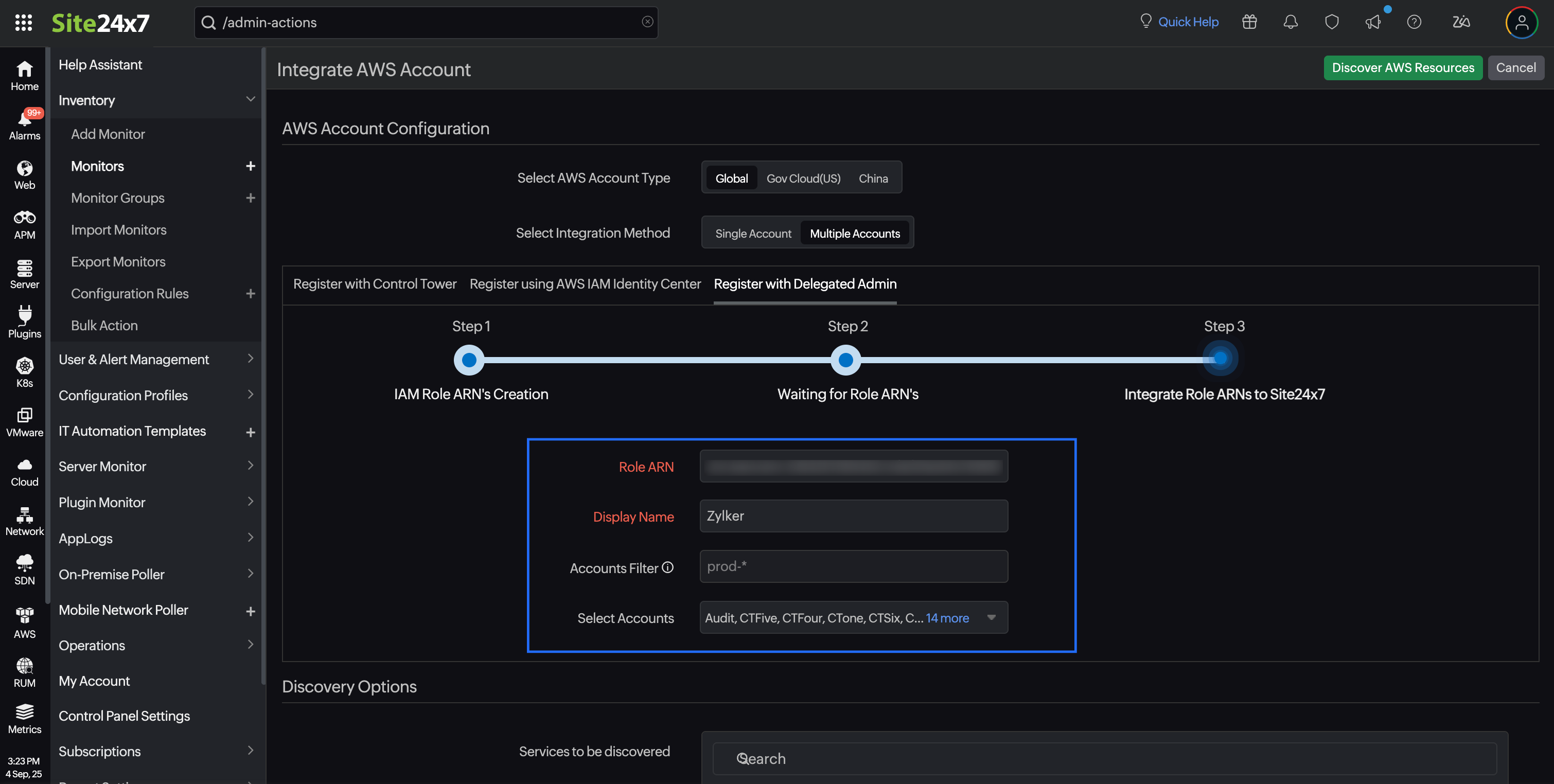
- Once the role ARN details are fetched, you can configure settings (such as the default threshold profiles for each supported AWS service), mute resource termination alerts, and customize the Guidance Report using the Advanced Configuration options.
- Choose the services you wish to integrate with Site24x7 from the Services to be discovered list in the Discovery Options section. You can view all the integrated accounts inside the management account integrated with Site24x7.
- Click Discover AWS Resources to add the accounts.
Once your AWS account is integrated with Site24x7 using the Delegated Admin method, you can view all the Delegated Admin Accounts under Cloud > AWS > Delegated Admin Accounts. Click Schedule Report to generate the Delegated Admin Accounts Report, which contains the Delegated Admin Account details in CSV format.
All the accounts linked to the Delegated Admin parent account will be listed on the Delegated Admin Linked Accounts page under Cloud > AWS > Linked Accounts. Click Schedule Report to generate the Delegated Admin Linked Accounts Report, which contains the Delegated Admin linked account details in CSV format.
-
- If you delete a Delegated Admin parent account, all the Delegated Admin linked accounts will also be deleted.
- If you modify the existing configuration of a Delegated Admin parent account, then the existing configurations of the Delegated Admin linked accounts will be overwritten as well.
- If you modify the configuration of any individual Delegated Admin linked account, then the changes will be reflected only in the linked account and will not affect the Delegated Admin parent account or any other linked accounts.
- If the Automatically Remove Suspended Accounts option is enabled under Integrate AWS Account > Advanced Configuration, all the closed AWS accounts will be permanently removed from Site24x7.
Add AWS accounts to an existing Delegated Admin integration
If some AWS accounts in your organization were not added when you first integrated the organization with Site24x7 using Delegated Admin, you can add them later without deleting and recreating the integration.
Site24x7 can discover AWS accounts that are not yet part of the integration and add them to your existing Delegated Admin setup.
When to use this
You can use account resync when an AWS account was:
- Not selected during the initial integration.
- Part of an organizational unit that was not included during the initial setup.
- Not provisioned successfully when the integration was created.
- Newly added to the AWS organization, but not picked up automatically.
Prerequisites
Before you begin, make sure that:
- You have an existing Delegated Admin integration in Site24x7.
- You have Admin or Super Admin access in Site24x7.
- You have access to the AWS console for the delegated administrator account used during the initial integration, with permission to create a CloudFormation stack.
- The accounts you want to add are active member accounts of the same AWS organization.
Add missed AWS accounts
- Log in to Site24x7 and go to Cloud > AWS > Delegated Admin Accounts. Click the edit icon next to the integrated account. You can also open the account from Admin > Inventory > Monitors.
- On the Edit Integrated AWS Account page, select the integration method as Multiple Accounts.
- Select the Register with Delegated Admin tab.
- In Step 1: IAM Role ARN's Creation, select the AWS region in which CloudFormation stack needs to be created.
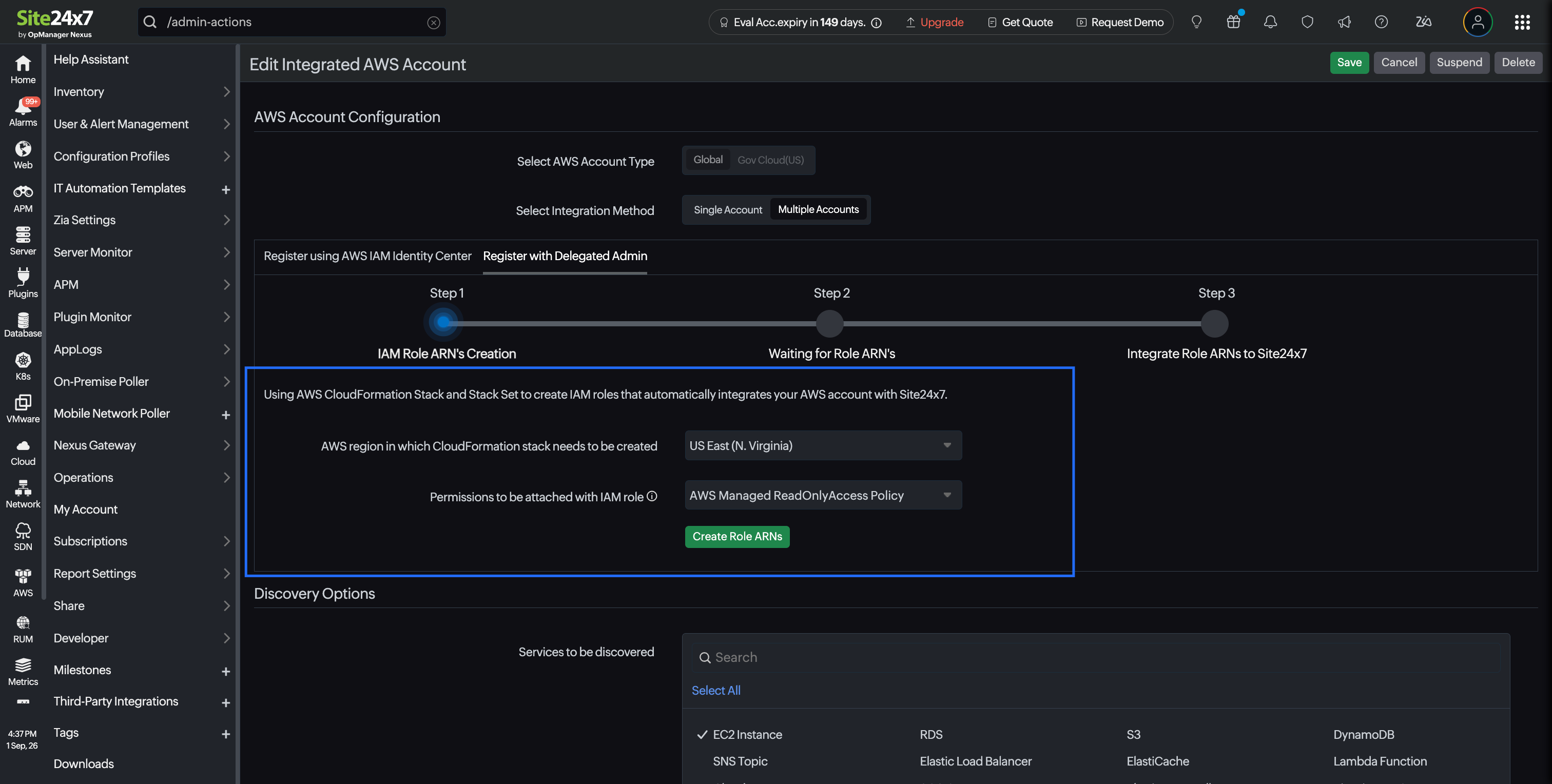
- Select the same permission model that you used during the initial integration for the Permissions to be attached with IAM role field. Site24x7 provides two options for IAM role permissions:
- AWS Managed ReadOnlyAccess Policy: The IAM role will be created with the ReadOnlyAccess policy, which is managed by AWS for all services.
- Site24x7 Custom Policy: The IAM role will be created with the in-line policy formulated with the read-only permissions required for Site24x7-supported services. Learn more.
- Click Create Role ARNs. The CloudFormation stack in your account will automatically create all the necessary components in your account. Learn more.
- A CloudFormation Quick create stack page in the AWS console opens in a new tab with the required values prefilled.
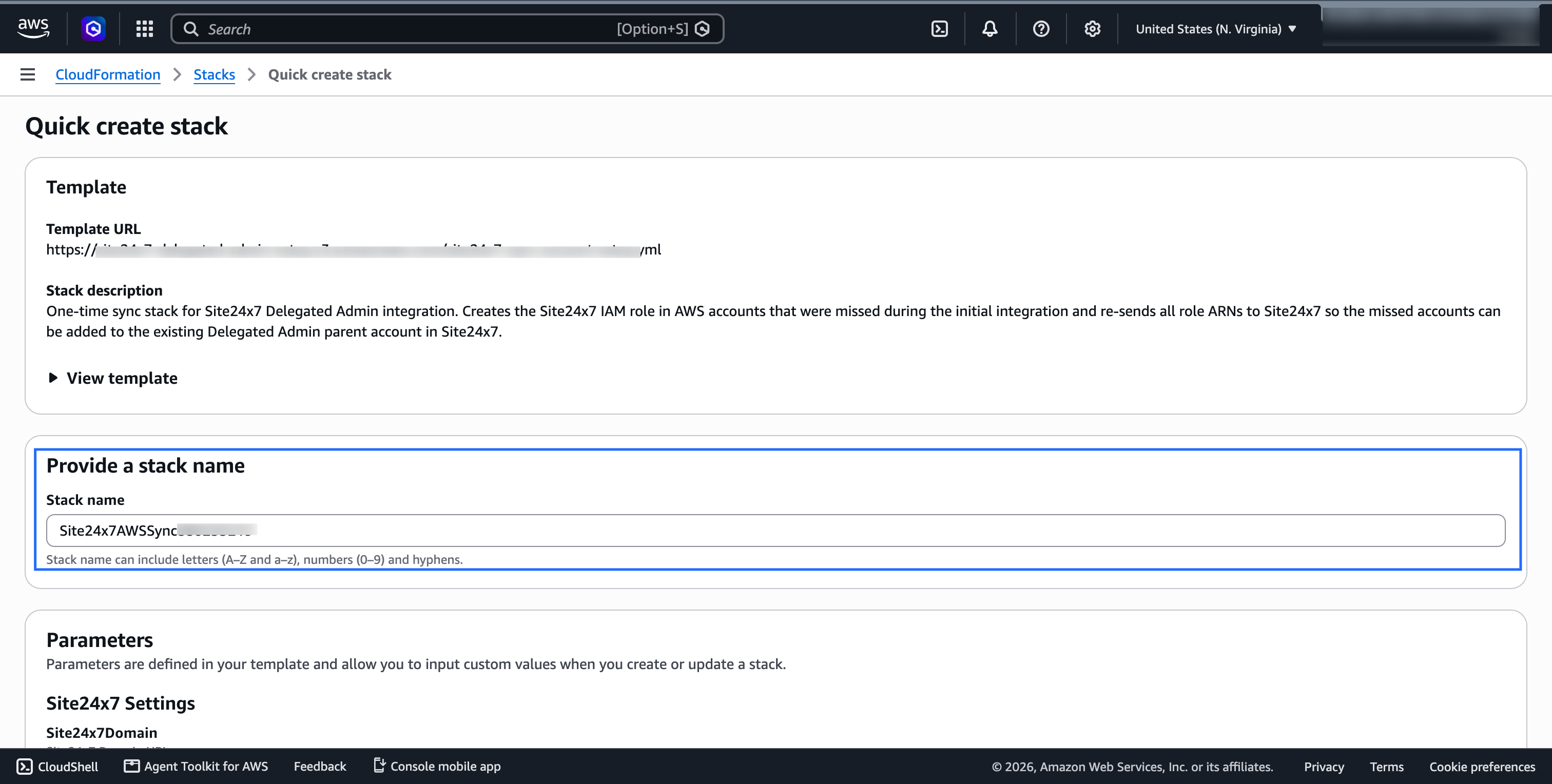
- Review the details, acknowledge the IAM resource creation requirement, and click Create stack.
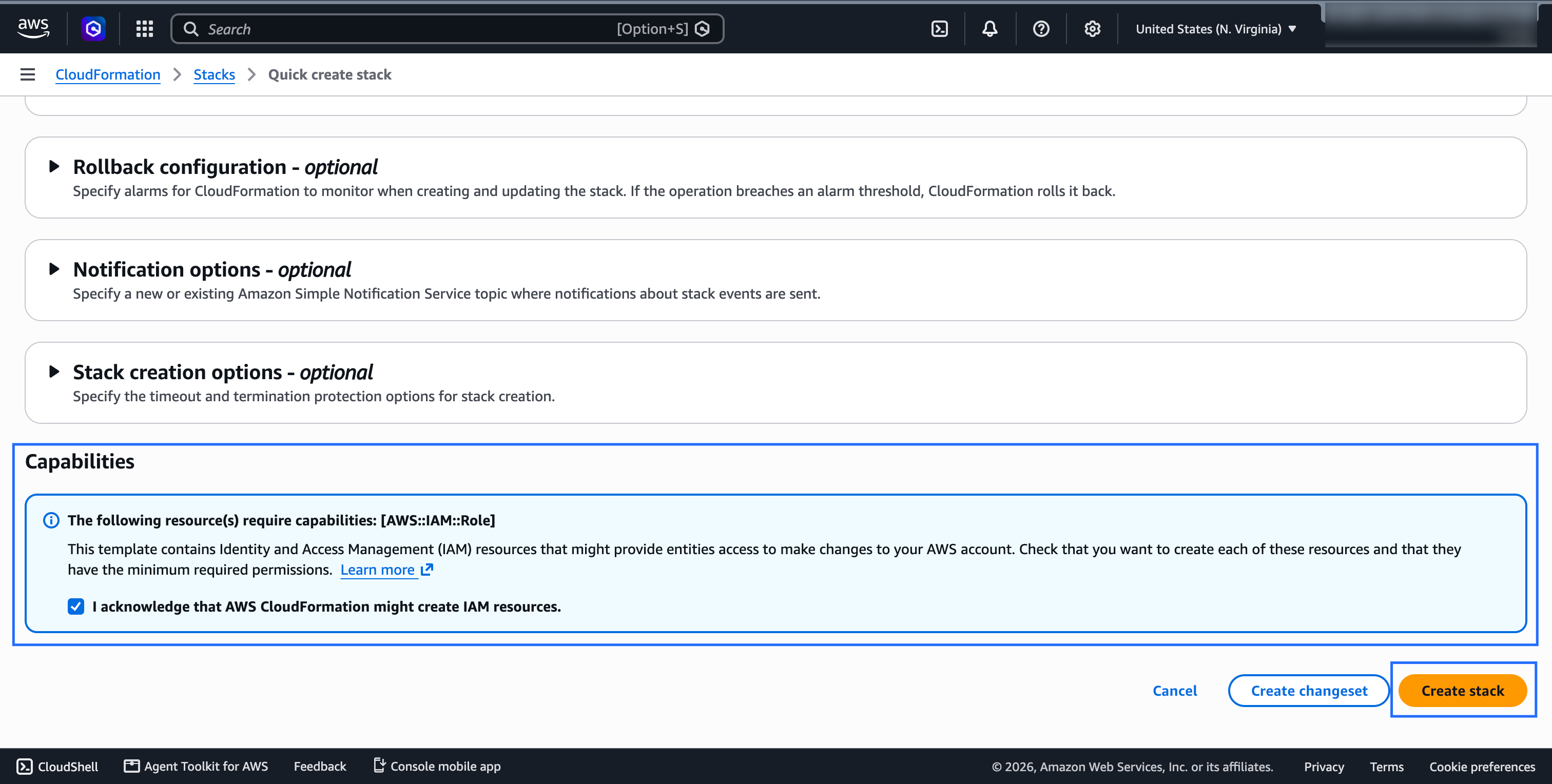
- The stack, named Site24x7AWSSync..., creates the Site24x7 IAM role only in accounts that do not already have the role and reports the accounts in your organization back to Site24x7. Accounts that are already integrated are not modified.
- In the Site24x7 console, Step 2: Waiting for Role ARN's displays the progress while AWS CloudFormation creates the required IAM roles. This usually completes within a few minutes. If the process takes longer, click Click here to manually sync the details.
- In Step 3: Integrate Role ARNs to Site24x7, review the accounts listed under Select Accounts. Accounts that are already part of the integration are shown as grayed out and cannot be selected. Select the accounts you wish to add, or click Select All to select all available accounts.
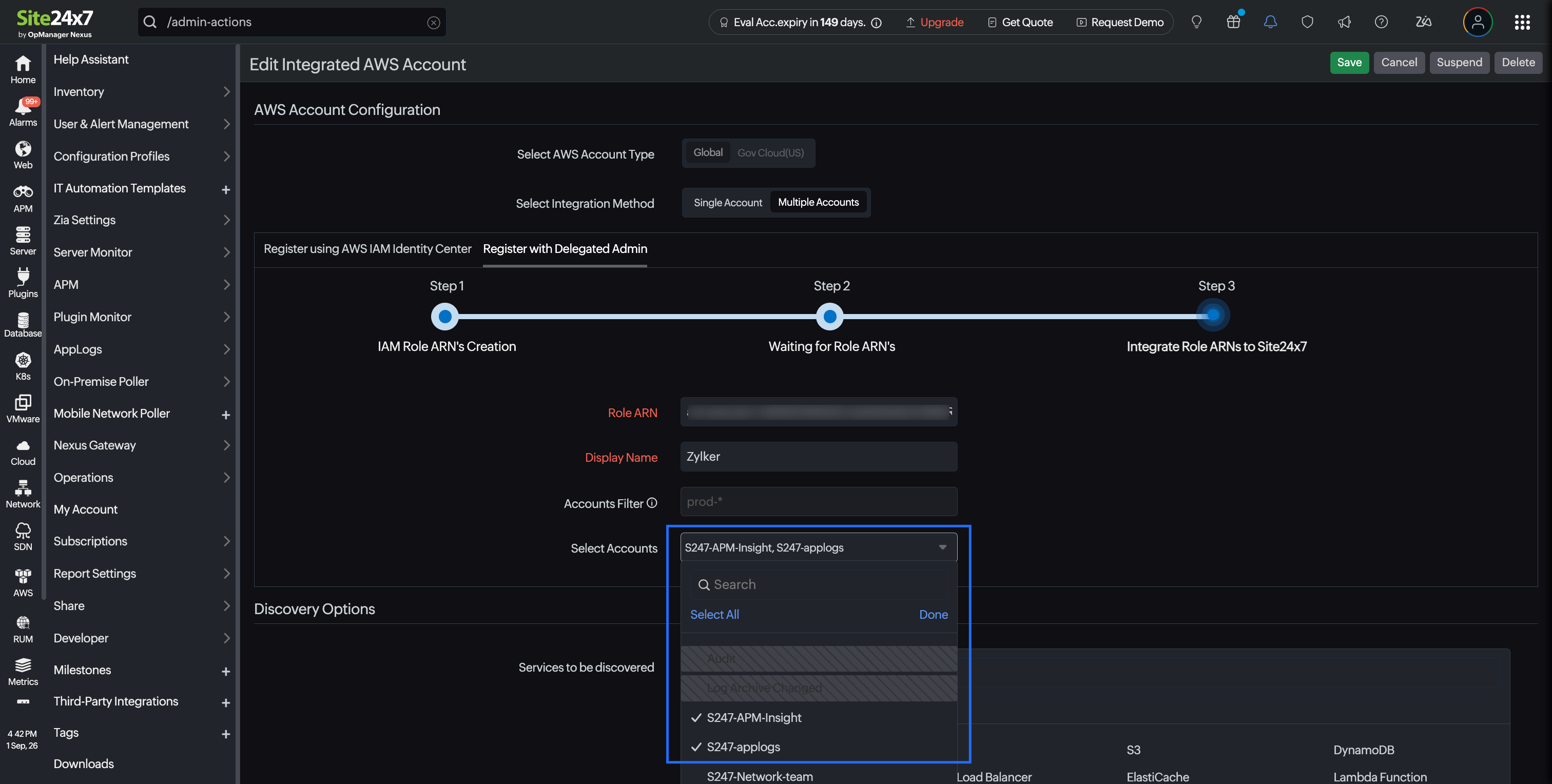 Note
NoteIf your integration uses an Accounts Filter regular expression, you do not need to select individual accounts. Newly discovered accounts that match the filter are added automatically when you save the integration.
- Click Save.
The selected accounts are added to the existing Delegated Admin integration. Resource discovery starts for the new accounts using the settings configured for the parent integration. The accounts then appear under Delegated Admin Linked Accounts.
-
- No new integration is created. The accounts are added to the existing Delegated Admin integration and inherit its configuration, including discovered services, thresholds, notification settings, and advanced settings.
- Accounts that are already integrated are not duplicated, even if you run the account resync process again.
- Complete the process within one hour of the CloudFormation stack completing. If this window expires, click Create Role ARNs again to restart the process.
- The Site24x7AWSSync... CloudFormation stack is a one-time helper stack. After the accounts are added, you can delete the stack from the AWS console. The IAM roles created by the stack are retained, so monitoring continues without interruption.
- To cancel the process, click Back in Step 2 and confirm the cancellation. Any CloudFormation stack already created in AWS is not removed automatically and can be deleted from the AWS console.
- The IAM role name is the same as the one used during the initial integration. Choose the same permission model you used initially, and do not change the prefilled values in the CloudFormation page unless instructed by the Site24x7 support team.
Troubleshooting
The Register with Delegated Admin tab is not visible
Make sure Multiple Accounts is selected under Select Integration Method and that you have Admin or Super Admin privileges.
Step 2 continues to wait
In the AWS console, verify that the Site24x7AWSSync... CloudFormation stack has reached CREATE_COMPLETE. If the stack failed, review the stack's Events tab and recreate the stack.
An expected account is not listed
Verify that the account is an active member of the same AWS organization. If the CloudFormation stack was restricted to specific AWS account IDs, verify that the account was included.
An account is grayed out
The account is already part of the Delegated Admin integration and does not need to be added again.
Delegated Admin Inventory Dashboard and Custom Dashboard
The Delegated Admin Inventory Dashboard provides a centralized view of all your Delegated Admin parent and linked account resources. It offers insights into monitored resources, a resource breakdown by region, and key metrics to help you efficiently manage your AWS environment.
To view the Delegated Admin parent account details, go to the Inventory Dashboard and toggle to the Parent Account option in the top-right corner to view data for resources discovered in the parent account. To access the combined data for all resources discovered through the Delegated Admin integration, toggle the option to Linked Accounts.
The Geo Map widget on the Custom Dashboard provides a regional breakdown of resources for your Delegated Admin parent and linked accounts. You can choose to view the region map or the numerical data of the resources from a region.
The Monitor Count widget on the Custom Dashboard displays the total monitor count for all Delegated Admin Accounts. It shows:
- The total number of monitored resources for both parent and linked accounts.
- A numerical split-up of the region-based service count.
- The region-based service distribution in a table format with a numerical option.
- A vertical bar chart option, allowing you to visualize how different AWS services have been operating over a selected time range.
Migrating Control Tower Accounts to the Delegated Admin
If you have already integrated your AWS accounts with Site24x7 using the Control Tower method, you can seamlessly migrate all your active linked Control Tower Accounts to the Delegated Admin Account.
Suppose you previously integrated five AWS accounts with Site24x7 using the Control Tower method. Instead of managing them through the Control Tower Account, you now want to delegate this responsibility to a specific member account. By migrating them to the Delegated Admin Account, all configurations from the selected Control Tower Account, along with its linked accounts, will be transferred to the Delegated Admin Account, ensuring a seamless transition.
To migrate the Control Tower Account to the Delegated Admin Account:
- Go to the desired Control Tower Account.
- Click Edit.
- On the Edit Integrated AWS Account page, select Register with Delegated Admin.
- Click Create Role ARNs. The CloudFormation stack in your account will automatically create all the necessary components in your Delegated Admin Account. Learn more.
After creating the IAM role, the CloudFormation stack and stack sets will send the role ARNs to Site24x7 via the Lambda function. - Enter the Display Name if required.
- Click Save.
Once you click Save, all the configurations in the selected Control Tower Account, along with the linked accounts, will be migrated to the Delegated Admin Account.
-
On this page
- Use cases
- Prerequisites
- Benefits of using the Delegated Admin method for integration
- How to set up a delegated admin account
- Integrate your AWS accounts with Site24x7 using the Delegated Admin method
- Add AWS accounts to an existing Delegated Admin integration
- Delegated Admin Inventory Dashboard and Custom Dashboard
- Migrating Control Tower Accounts to the Delegated Admin